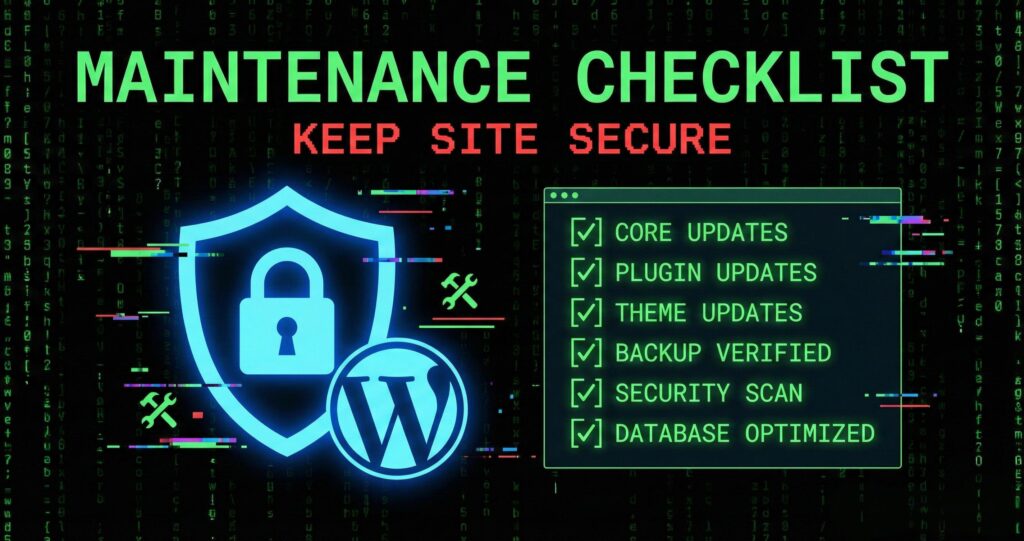
WordPress powers over 43% of all websites on the internet, making it a prime target for hackers and malicious attacks. According to Search Engine Journal, over 90% of hacked WordPress sites were running outdated software. Regular maintenance isn’t just recommended—it’s essential for keeping your site secure, fast, and reliable.
Recent Developments
- The 2025 Verizon Data Breach Investigations Report (DBIR) highlights a 34% increase in breaches due to exploitation of vulnerabilities, emphasizing the critical need for routine updates and security monitoring[2].
- Wordfence’s 2024 report shows a massive volume of malicious login attempts and requests, underscoring the ongoing threat landscape for WordPress sites[2].
- Despite frequent attacks, the average time between attacks has increased from 22 to 32 minutes, indicating some success in community-driven security improvements[3].
This comprehensive checklist covers everything you need to maintain your WordPress site, from daily security checks to quarterly audits. Follow this guide to protect your site from attacks, improve performance, and ensure everything runs smoothly.
Why WordPress Maintenance Matters
Your WordPress site is like a car: it needs regular checkups and updates to run smoothly. Without proper maintenance, you risk:
- Security vulnerabilities that hackers can exploit: According to security research, over 30,000 websites are hacked every day, and WordPress sites are a prime target. Outdated software is the #1 cause of WordPress security breaches.
- Slow loading times that drive visitors away: According to Google’s research, 53% of mobile users abandon sites that take longer than 3 seconds to load. Poor maintenance leads to slow performance, which hurts your SEO and user experience.
- Plugin conflicts that break functionality: Outdated plugins can conflict with WordPress core updates, causing features to break. Regular updates prevent these conflicts and ensure everything works together.
- Outdated themes causing compatibility issues: Themes that haven’t been updated may not work with the latest WordPress version, causing display issues or broken functionality.
- Database bloat affecting performance: Over time, your database accumulates unnecessary data (spam comments, post revisions, transient options). This bloat slows down your site and can cause performance issues.
The cost of neglecting maintenance can be devastating. According to IBM’s 2025 Cost of a Data Breach Report, the average cost of a small business data breach is $8,700. Plus, you’ll lose revenue from downtime, damage to your reputation, and potential SEO penalties. Our maintenance plans handle all of this for you, so you don’t have to worry.
Daily Maintenance Tasks
While daily maintenance might seem excessive, these quick checks can prevent major issues:
- Check Site Uptime: Verify your site is accessible and loading correctly. Use uptime monitoring tools to get alerts if your site goes down.
- Review Security Alerts: Check your security plugin for any alerts or warnings. Early detection of security issues can prevent major breaches.
- Monitor Backup Status: Ensure your automated backups are running successfully. If backups fail, you need to know immediately.
These tasks take just a few minutes but can save you hours of troubleshooting later. Our maintenance plans include 24/7 monitoring, so we handle these checks for you.
Weekly Maintenance Tasks
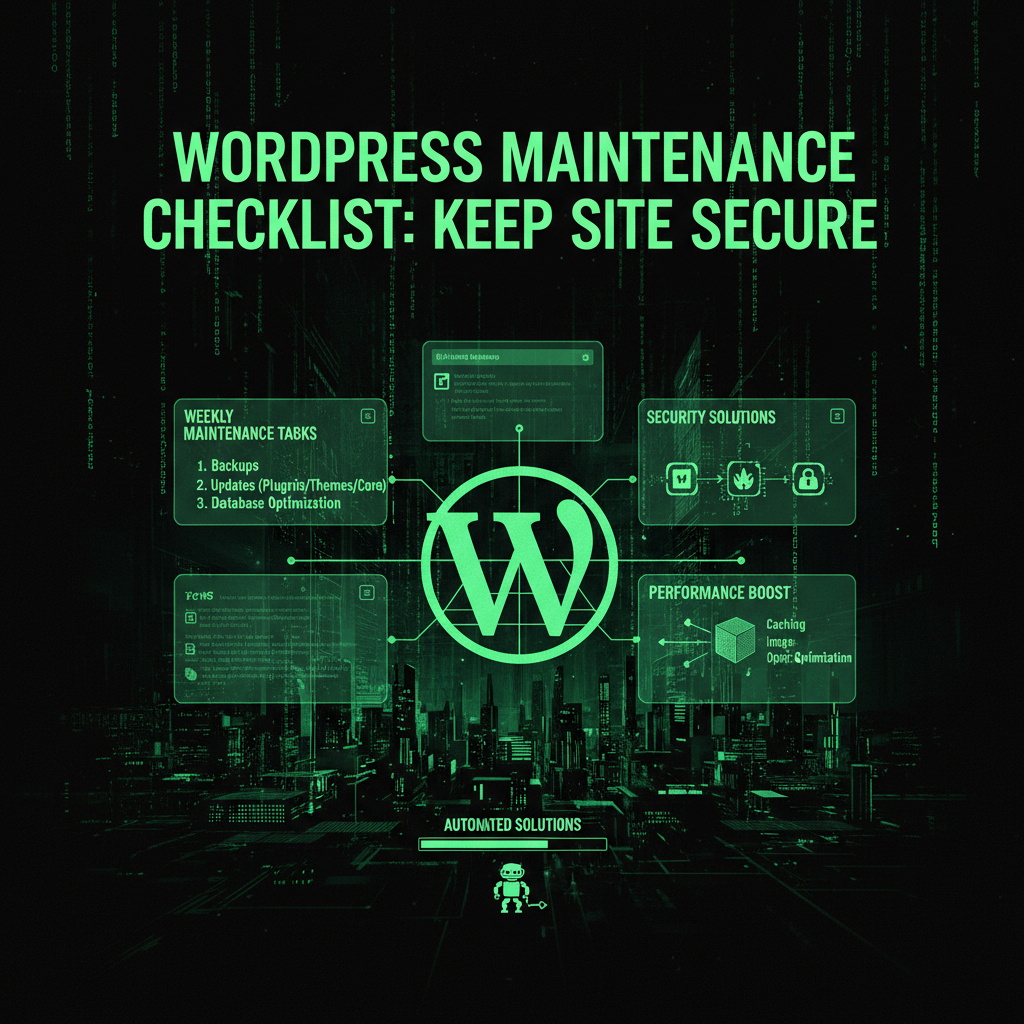
1. Update Core, Plugins, and Themes
WordPress releases security patches regularly. Set aside time each week to check for and install updates. Always test updates on a staging site first if you have one. According to WordPress security statistics, over 50% of WordPress sites are running outdated versions, making them vulnerable to known exploits.
Best practices for updates:
- Backup your site before updating
- Test updates on a staging site first
- Update plugins before WordPress core
- Update one thing at a time to identify conflicts
- Check your site after each update
If you don’t have time for this, our maintenance plans include automated updates with manual oversight, so you never have to worry about updates again.
2. Check Security Status
Run security scans to detect malware, suspicious files, or unauthorized access. Tools like Wordfence or Sucuri can automate this process. According to security research, over 70% of WordPress sites have at least one security vulnerability at any given time.
What to check:
- Malware and suspicious files
- Unauthorized file changes
- Weak passwords and user accounts
- Outdated software with known vulnerabilities
Our security audit service performs comprehensive security checks and identifies vulnerabilities before attackers exploit them.
3. Review Recent Activity
Check your site’s activity logs for unusual login attempts or unexpected changes. Early detection can prevent major security breaches. Look for:
- Failed login attempts from unknown IPs
- Unexpected file changes or new files
- New user accounts you didn’t create
- Changes to critical files or settings
If you notice anything suspicious, investigate immediately. Our security audit service includes activity log analysis to identify potential threats.
4. Verify Backups
Ensure your automated backups are running correctly. Test a restore periodically to confirm your backups actually work. According to backup statistics, over 60% of businesses that experience data loss never fully recover. Don’t be one of them.
Backup best practices:
- Backup daily (at minimum)
- Store backups off-site
- Test restore process monthly
- Keep multiple backup copies
- Include both files and database
Our maintenance plans include automated daily backups stored off-site, with easy restoration when needed.
Monthly Maintenance Tasks
1. Database Optimization
Clean up your database by removing spam comments, post revisions, and transient options. This can significantly improve site speed. Over time, your database accumulates unnecessary data that slows down queries and increases load times.
What to clean:
- Spam comments and pending comments
- Post revisions (keep only the latest few)
- Transient options and expired transients
- Orphaned post meta and comment meta
- Unused tags and categories
Database optimization can improve site speed by 20-30% for sites with significant bloat. Our maintenance plans include monthly database optimization to keep your site running fast.
2. Performance Audit
Use tools like Google PageSpeed Insights or GTmetrix to identify performance bottlenecks. Focus on Core Web Vitals metrics, which Google uses for ranking.
Key metrics to monitor:
- Largest Contentful Paint (LCP): Should be under 2.5 seconds
- First Input Delay (FID): Should be under 100 milliseconds
- Cumulative Layout Shift (CLS): Should be under 0.1
If your site scores poorly, our speed optimization services can help improve performance and Core Web Vitals scores.
3. Review and Update Content
Update outdated information, fix broken links, and ensure all forms and contact methods are working properly. Broken links hurt your SEO and user experience.
Content review checklist:
- Check for broken internal and external links
- Update outdated information and statistics
- Test all contact forms and submission processes
- Verify all images load correctly
- Check mobile responsiveness
4. Check User Accounts
Review user accounts and remove any that are no longer needed. Ensure all remaining users have strong, unique passwords. According to security research, over 80% of data breaches involve weak or compromised passwords.
User account security:
- Remove inactive or unused accounts
- Require strong passwords (12+ characters, mixed case, numbers, symbols)
- Enable two-factor authentication for admin accounts
- Review user roles and permissions
- Monitor for suspicious account activity
Quarterly Maintenance Tasks
1. Comprehensive Security Audit
Perform a deep security review including file permissions, SSL certificate status, and firewall configuration. Our security audit service performs comprehensive checks to identify vulnerabilities before attackers exploit them.
Security audit checklist:
- File permissions and ownership
- SSL certificate validity and configuration
- Firewall rules and configuration
- Server security settings
- Vulnerability scanning
- Penetration testing (if applicable)
2. Plugin and Theme Audit
Review installed plugins and themes. Remove unused ones, and check if current ones are actively maintained by developers. According to WordPress statistics, over 50% of WordPress sites have at least one inactive plugin installed, which can pose security risks.
Plugin and theme review:
- Remove unused plugins and themes
- Check last update date (should be within 6 months)
- Review plugin ratings and reviews
- Check for known vulnerabilities
- Verify compatibility with current WordPress version
3. SEO Review
Check your site’s SEO health: meta tags, schema markup, sitemap updates, and search console errors. Our SEO audit service can help identify and fix SEO issues.
SEO review checklist:
- Meta tags and descriptions
- Schema markup implementation
- XML sitemap updates
- Google Search Console errors
- Mobile-friendliness
- Core Web Vitals scores
Automating WordPress Maintenance
If this all sounds overwhelming, you’re not alone. That’s why we created ProWebCare—to handle all these maintenance tasks for you automatically.
Our maintenance plans cover everything on this checklist and more:
- Automated Updates: WordPress, plugins, and themes updated safely with manual oversight
- Daily Backups: Automated daily backups stored off-site with easy restoration
- Security Monitoring: 24/7 monitoring for threats, malware, and suspicious activity
- Performance Optimization: Regular database optimization and performance tuning
- Expert Support: Real humans who know your site and can help when needed
With managed maintenance, you can focus on running your business instead of worrying about technical maintenance. Our maintenance plans start at affordable rates for small businesses.
Ready to automate your WordPress maintenance? Get in touch for a free site review and we’ll help you get protected today.
Frequently Asked Questions
How often should I maintain my WordPress site?
You should perform maintenance tasks regularly: daily checks for uptime and security alerts, weekly updates and security scans, monthly database optimization and performance audits, and quarterly comprehensive security and SEO reviews. If you don’t have time for this, our maintenance plans handle all of this for you automatically.
What happens if I don’t maintain my WordPress site?
Without proper maintenance, your site becomes vulnerable to security attacks, performance issues, and compatibility problems. According to security research, over 90% of hacked WordPress sites were running outdated software. Neglecting maintenance can lead to data breaches, downtime, and lost revenue.
Can I automate WordPress maintenance?
Yes, many maintenance tasks can be automated with plugins and tools. However, automated updates can sometimes break your site if not properly tested. Our maintenance plans include automated updates with manual oversight, so we test everything on staging before applying updates to your live site.
How much time does WordPress maintenance take?
If you do everything manually, WordPress maintenance can take 5-10 hours per month, depending on your site’s complexity. With our maintenance plans, you don’t have to spend any time on maintenance—we handle everything for you.
What’s included in a WordPress maintenance plan?
A comprehensive maintenance plan includes automated updates, daily backups, security monitoring, performance optimization, database cleanup, and expert support. Our maintenance plans cover all of this and more, so you can focus on your business.
Do I need a maintenance plan if my site is small?
Yes, even small sites need maintenance. In fact, small sites are often more vulnerable because they’re less likely to have dedicated IT resources. Our maintenance plans are affordable for small businesses and provide the same level of protection as larger sites.
What if something breaks during maintenance?
With our maintenance plans, we test all updates on a staging site first, so we can identify and fix issues before they affect your live site. If something does break, we fix it immediately at no extra cost. Plus, we have daily backups, so we can restore your site to any point in the past 90 days if needed.
Detailed Maintenance Task Breakdown
Let’s dive deeper into each maintenance category:
Security Maintenance Deep Dive
Security is the most critical aspect of WordPress maintenance. Here’s what you need to know:
Update Priority Levels
- Critical security updates: Apply within 24 hours. These patch known vulnerabilities being actively exploited.
- Important security updates: Apply within 48 hours. These fix vulnerabilities that could be exploited.
- Regular updates: Apply within 1 week. These include bug fixes and minor improvements.
- Feature updates: Apply within 1 month. These add new features but aren’t security-critical.
Security Plugin Configuration
If you’re using a security plugin like Wordfence or Sucuri, ensure it’s properly configured:
- Enable firewall with appropriate rules
- Configure malware scanning schedule
- Set up email alerts for security events
- Enable two-factor authentication
- Configure login attempt limits
- Set up file integrity monitoring
Password Security
Weak passwords are the #1 cause of WordPress breaches:
- Require passwords of 16+ characters
- Enforce password complexity (mixed case, numbers, symbols)
- Implement password expiration (change every 90 days)
- Prohibit password reuse
- Use password managers for all accounts
Performance Maintenance Deep Dive
Performance maintenance keeps your site fast and improves user experience:
Image Optimization
- Compress images before uploading (reduce file size by 60-80%)
- Convert images to WebP format (30% smaller than JPEG)
- Implement lazy loading for images
- Use appropriate image dimensions (don’t upload 4000px images for 800px display)
- Remove unused images from media library
Caching Configuration
Proper caching can improve load times by 50-70%:
- Enable page caching (serve static HTML)
- Configure object caching (cache database queries)
- Set up browser caching (store files locally)
- Use CDN caching (serve from edge locations)
- Clear cache after updates or changes
Database Optimization
Regular database cleanup improves performance significantly:
- Remove spam comments (can accumulate thousands)
- Limit post revisions (keep only last 3-5)
- Clean transient options (temporary cached data)
- Remove orphaned metadata
- Optimize database tables (repair and optimize)
Backup Maintenance Deep Dive
Backups are your safety net. Here’s how to ensure they work:
Backup Types
- Full backups: Complete site copy (files + database) – daily
- Incremental backups: Only changed files – more frequent
- Database-only backups: Just database – multiple times daily
- Manual backups: Before major changes or updates
Backup Storage
- Store backups off-site (not on same server)
- Use multiple storage locations (cloud + local)
- Encrypt sensitive backup data
- Test restore process monthly
- Keep backups for 30-90 days minimum
Backup Testing
Backups are useless if they don’t work. Test regularly:
- Test restore on staging site monthly
- Verify backup file integrity
- Check backup completion logs
- Ensure backups include all necessary files
Maintenance Tools and Resources
Here are essential tools for WordPress maintenance:
Security Tools
- Wordfence: Comprehensive security plugin with firewall and malware scanning
- Sucuri: Security scanning and monitoring service
- iThemes Security: All-in-one security solution
- Google Search Console: Monitor for security issues and blacklist status
Performance Tools
- Google PageSpeed Insights: Measure and improve site speed
- GTmetrix: Detailed performance analysis
- WP Rocket: Premium caching plugin
- Smush: Image optimization plugin
Backup Tools
- UpdraftPlus: Popular backup plugin with cloud storage
- BackupBuddy: Comprehensive backup solution
- VaultPress: Automated backup service
- Hosting backups: Many hosts offer automated backups
Monitoring Tools
- UptimeRobot: Free uptime monitoring
- Pingdom: Performance and uptime monitoring
- Google Analytics: Track site performance and user behavior
- WordPress Activity Log: Monitor site changes and user activity
Common Maintenance Mistakes to Avoid
Here are mistakes that can cause major problems:
1. Ignoring Updates
Mistake: Delaying updates because “everything works fine”
Risk: Security vulnerabilities accumulate, making site an easy target
Solution: Update regularly, test on staging first
2. No Backups Before Updates
Mistake: Updating without backing up first
Risk: If update breaks site, no way to restore
Solution: Always backup before any changes
3. Too Many Plugins
Mistake: Installing plugins for every feature
Risk: Plugin conflicts, performance issues, security vulnerabilities
Solution: Use only necessary plugins, remove unused ones
4. Weak Passwords
Mistake: Using simple passwords or reusing passwords
Risk: Easy for attackers to guess or use from data breaches
Solution: Use strong, unique passwords and password manager
5. No Security Plugin
Mistake: Relying only on WordPress core security
Risk: Missing advanced protection against sophisticated attacks
Solution: Install and configure security plugin
6. Ignoring Performance
Mistake: Focusing only on security, ignoring speed
Risk: Slow site hurts SEO, user experience, and conversions
Solution: Regular performance audits and optimization
The Cost of Neglecting Maintenance
Let’s break down what happens when you skip maintenance:
Short-Term Costs (First Month)
- Security vulnerability exposure: $0 (but risk increases daily)
- Performance degradation: 5-10% slower load times
- Minor compatibility issues: $200-$500 to fix
Medium-Term Costs (3-6 Months)
- Security breach risk: 30-50% higher
- Performance issues: 20-30% slower, SEO impact
- Compatibility problems: $1,000-$3,000 to fix
- Lost revenue from slow site: $500-$2,000/month
Long-Term Costs (6+ Months)
- Security breach: $8,700-$200,000+ (average small business breach)
- Site rebuild: $10,000-$50,000+ if severely compromised
- SEO penalties: 40-60% traffic loss, $5,000-$50,000+ in lost revenue
- Reputation damage: Lost customers, damaged brand
Total Cost Example
If you neglect maintenance for 1 year and experience a security breach:
- Security breach recovery: $12,000
- Site rebuild: $15,000
- Lost revenue (3 months): $18,000
- SEO recovery: $25,000
- Total: $70,000+
Compare this to maintenance plan: $199/month × 12 = $2,388/year. Maintenance is 29x cheaper than neglect.
Maintenance Plan Comparison
Here’s what you get with different maintenance approaches:
DIY Maintenance
- Cost: $0 (but 5-10 hours/month of your time)
- Time: 5-10 hours/month
- Risk: High (easy to miss critical updates)
- Expertise: Requires technical knowledge
- Best for: Technical users with time available
Plugin-Based Automation
- Cost: $200-$500/year (premium plugins)
- Time: 2-3 hours/month (monitoring and configuration)
- Risk: Medium (automation can break things)
- Expertise: Moderate technical knowledge needed
- Best for: Users comfortable with WordPress
Managed Maintenance Plan
- Cost: $2,388/year ($199/month)
- Time: 0 hours/month (we handle everything)
- Risk: Low (expert oversight, tested updates)
- Expertise: No technical knowledge needed
- Best for: Business owners who want peace of mind
Getting Started with Maintenance
If you’re starting from scratch, here’s your action plan:
Week 1: Foundation
- Install security plugin (Wordfence or Sucuri)
- Set up automated backups (UpdraftPlus or similar)
- Enable two-factor authentication
- Change all weak passwords
- Update WordPress core, plugins, and themes
Week 2: Optimization
- Install caching plugin (WP Rocket or W3 Total Cache)
- Optimize images (compress and convert to WebP)
- Clean up database (remove spam, revisions)
- Set up uptime monitoring
- Configure performance monitoring
Week 3: Documentation
- Document all credentials (password manager)
- List all plugins and themes
- Document hosting and domain details
- Create maintenance schedule
- Set up maintenance reminders
Week 4: Establish Routine
- Schedule weekly update time
- Set up monthly optimization tasks
- Plan quarterly security audits
- Consider managed maintenance plan
- Review and adjust based on results
When to Get Professional Help
You should consider professional maintenance if:
- You don’t have time: Maintenance takes 5-10 hours/month
- You’re not technical: Maintenance requires WordPress expertise
- You’ve had security issues: Professional help prevents recurrence
- Your site is critical: Business depends on website being online
- You want peace of mind: Know experts are handling it
- You’ve experienced downtime: Professional maintenance prevents it
Our maintenance plans provide professional maintenance at affordable rates, so you can focus on your business instead of technical maintenance.
How do I know if my WordPress site needs maintenance?
Your site needs maintenance if: You haven’t updated in 30+ days (security risk). Site is slow (over 3 seconds load time). You get security warnings from plugins or hosting. Backups aren’t running or you haven’t tested them. You see errors or broken functionality. Google Search Console shows issues (security problems, performance issues). You can’t remember last maintenance (if you’re not sure, you’re overdue). Regular maintenance prevents these issues. Our maintenance plans include proactive monitoring that identifies issues before they become problems.
What’s the difference between WordPress maintenance and hosting?
Hosting and maintenance are different: Hosting: Provides server space, basic security, and infrastructure. You’re responsible for WordPress updates, backups, security, and optimization. Maintenance: Handles WordPress-specific tasks like updates, backups, security monitoring, performance optimization, and support. You need both: Hosting provides the foundation, maintenance keeps WordPress running smoothly. Managed hosting: Some hosts offer WordPress maintenance, but it’s usually basic. Professional maintenance plans provide more comprehensive service. Our maintenance plans work with any hosting provider and provide comprehensive WordPress maintenance regardless of where your site is hosted.
Can I skip some maintenance tasks if I’m short on time?
Some tasks are more critical than others, but skipping maintenance is risky: Never skip: Security updates (critical vulnerabilities), backups (your safety net), security scans (threat detection). Can delay briefly: Performance optimization (1-2 weeks), database cleanup (1 month), content updates (as needed). Risk of skipping: Even delaying “non-critical” tasks increases risk. Security vulnerabilities can be exploited within hours of disclosure. Better approach: Use managed maintenance plan so you never have to skip tasks. Our maintenance plans ensure all critical tasks are completed on time, so you don’t have to choose what to skip.
How much does WordPress maintenance cost if I do it myself?
DIY maintenance costs vary: Free tools: $0, but limited functionality and time investment (5-10 hours/month). Premium plugins: $200-$500/year for security, backup, and performance tools. Time cost: 5-10 hours/month × $50/hour = $250-$500/month = $3,000-$6,000/year. Total DIY cost: $3,200-$6,500/year (including your time). Risk cost: Higher risk of mistakes, missed updates, security breaches. Compare to managed: Our maintenance plans cost $2,388/year and include expert management, so you save time and reduce risk. DIY isn’t necessarily cheaper when you factor in time and risk.
What happens if I stop maintaining my WordPress site?
If you stop maintaining your site: Immediate (first month): Security vulnerabilities accumulate, performance slowly degrades, minor compatibility issues appear. Short-term (3-6 months): High risk of security breach, significant performance problems, SEO impact, broken functionality. Long-term (6+ months): Very high breach risk, site may need complete rebuild, severe SEO penalties, potential total site loss. Recovery cost: $10,000-$50,000+ to recover from severe neglect. Prevention: Regular maintenance costs $2,388/year and prevents all of this. Our maintenance plans ensure your site stays maintained even if you’re busy, preventing costly recovery.
Do I need maintenance if my site is just a blog?
Yes, even blogs need maintenance: Security: Blogs are still targets for attacks (SEO spam, malware distribution, botnet participation). Performance: Slow blogs lose readers and rank lower in search. Updates: WordPress, plugins, and themes still need updates. Backups: You still need backups (lost content is devastating). SEO: Outdated software and slow performance hurt search rankings. Reality: Small sites are actually more vulnerable because they’re easier targets. Our maintenance plans are affordable for blogs and small sites, providing the same protection as larger sites.