iOS 26.2 Interactive Guide: 10 New Features That Change Everything
December 12, 2025. Apple released iOS 26.2, and it's not just another incremental update. This release introduces features that fundamentally change how you interact with your iPhone—from urgent reminders that won't let you miss critical tasks to AirDrop sharing that works with anyone, even if they're not in your contacts.
Recent Developments
- Apple released iOS 26.2 on December 12, 2025, introducing 10+ major new features across Reminders, AirDrop, Lock Screen, Podcasts, and more[1][2].
- The update is available for iPhone 11 and newer models, including iPhone SE 2020 and 2022, with a focus on productivity, accessibility, and security enhancements[1].
- iOS 26.2 addresses a critical App Store security vulnerability where apps could access sensitive payment tokens, enhancing overall device security[3].
- New accessibility features include "Flash for Alerts" for visual notification cues and Enhanced Safety Alerts with rich information during emergencies[1].
This isn't just an update. It's a transformation.
iOS 26.2 brings features that many iPhone users have been requesting for years. From the ability to share files with strangers via AirDrop (without compromising your privacy) to urgent reminders that actually get your attention, this update addresses real-world problems with elegant solutions.
But here's what most tech blogs won't tell you: These features require proper setup to work effectively. A poorly configured urgent reminder is just another notification you'll ignore. An AirDrop PIN code shared incorrectly could expose your data. Our website development services help businesses create mobile-optimized experiences that leverage these new iOS capabilities.
Quick Summary: iOS 26.2 at a Glance
- Release date: December 12, 2025
- Update size: Approximately 1.5-2 GB (varies by device)
- Compatible devices: iPhone 11 and newer, iPhone SE 2020/2022
- Major features: 10+ new features across productivity, sharing, and accessibility
- Security fixes: Critical App Store payment token vulnerability patched
- Installation time: 15-30 minutes (depending on device and connection)
- Key improvement: Enhanced productivity tools and privacy-focused sharing options
Feature 1: Urgent Reminders with Alarms
The Problem: You set a reminder for an important meeting, but when it goes off, you're in the middle of something else. You dismiss it, forget about it, and miss the meeting entirely.
The Solution: iOS 26.2 introduces "Urgent Alarms" for reminders. This isn't just a notification—it's an actual alarm that requires action.
How It Works
When you create a reminder in the Reminders app, you can now toggle on "Urgent" mode. This transforms the reminder into an alarm that:
- Plays a persistent sound until you take action
- Requires interaction—you can't just swipe it away
- Offers snooze options if you need a few more minutes
- Works even when Do Not Disturb is enabled (critical for urgent tasks)
Step-by-Step Setup Guide
Creating an Urgent Reminder
- Open the Reminders app
- Tap the + button to create a new reminder
- Enter your reminder text (e.g., "Doctor appointment at 2 PM")
- Tap the i icon next to the reminder
- Toggle on "Urgent" mode
- Set your date and time
- Tap "Done"
💡 Pro Tip: Use urgent reminders sparingly. If everything is urgent, nothing is urgent. Reserve this for truly critical tasks like medical appointments, deadlines, or important meetings.
Use Cases: When to Use Urgent Reminders
- Medical appointments: You can't miss these, and they often can't be rescheduled easily
- Court dates or legal deadlines: Missing these can have serious consequences
- Flight departures: Critical timing that requires your immediate attention
- Job interviews: First impressions matter, and being late is a deal-breaker
- Time-sensitive work deadlines: When missing a deadline means losing a client or project
What Makes This Different from Regular Reminders?
Regular reminders are passive. They appear, you see them (or don't), and they can be easily dismissed. Urgent reminders are active—they demand your attention and won't let you forget.
Real-World Example: A client of ours uses urgent reminders for their medication schedule. They have a chronic condition that requires medication at specific times, and missing a dose can cause serious health issues. The urgent alarm ensures they never miss a dose, even if they're in a meeting or focused on work.
Feature 2: AirDrop PIN Code Sharing
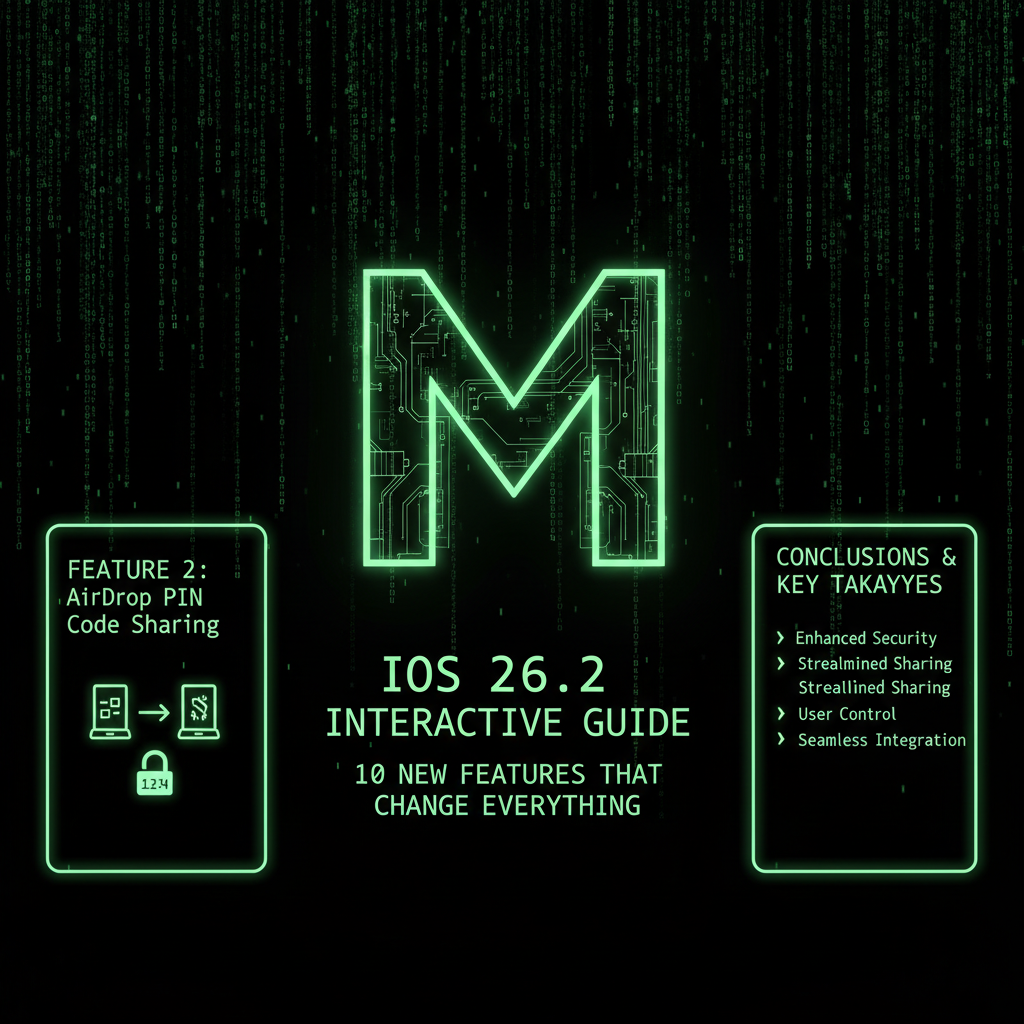
The Problem: AirDrop is incredibly convenient—when it works. But it only works with people in your contacts, or when you set it to "Everyone" (which exposes you to unwanted sharing requests from strangers).
The Solution: iOS 26.2 introduces temporary sharing codes for AirDrop. You can now share files with anyone using a 30-day access code, without compromising your privacy settings.
How It Works
The new AirDrop PIN code system allows you to:
- Generate a temporary sharing code that works for 30 days
- Share files with non-contacts without changing your AirDrop settings to "Everyone"
- Maintain privacy—your AirDrop settings stay on "Contacts Only"
- Revoke access at any time before the 30-day period expires
Step-by-Step Guide: Using AirDrop PIN Codes
Sharing Files with a PIN Code
- Open the file you want to share (photo, document, etc.)
- Tap the Share button
- Tap AirDrop
- If the recipient isn't in your contacts, tap "Generate Sharing Code"
- A 6-digit PIN code will be generated
- Share this code with the recipient (via text, email, or in person)
- The recipient enters the code on their iPhone
- The file transfer begins automatically
💡 Security Note: The PIN code expires after 30 days or after the first successful transfer (whichever comes first). This prevents unauthorized access if the code is shared or intercepted.
Privacy and Security Benefits
This feature solves a major privacy concern with AirDrop. Previously, to share with non-contacts, you had to:
- Change AirDrop settings to "Everyone" (exposing you to unwanted requests)
- Remember to change it back (which many people forget to do)
- Risk receiving inappropriate content from strangers
With PIN codes, you can:
- Keep AirDrop set to "Contacts Only" for security
- Share with specific people when needed
- Maintain control over who can send you files
Business Use Cases
- Client file sharing: Share large design files or documents with clients without adding them to your contacts
- Event photography: Event photographers can share photos with attendees using temporary codes
- Collaborative projects: Share files with team members or contractors on a project-by-project basis
- One-time transfers: Share files with someone you'll never interact with again (like a one-time vendor)
Feature 3: Liquid Glass Lock Screen Customization
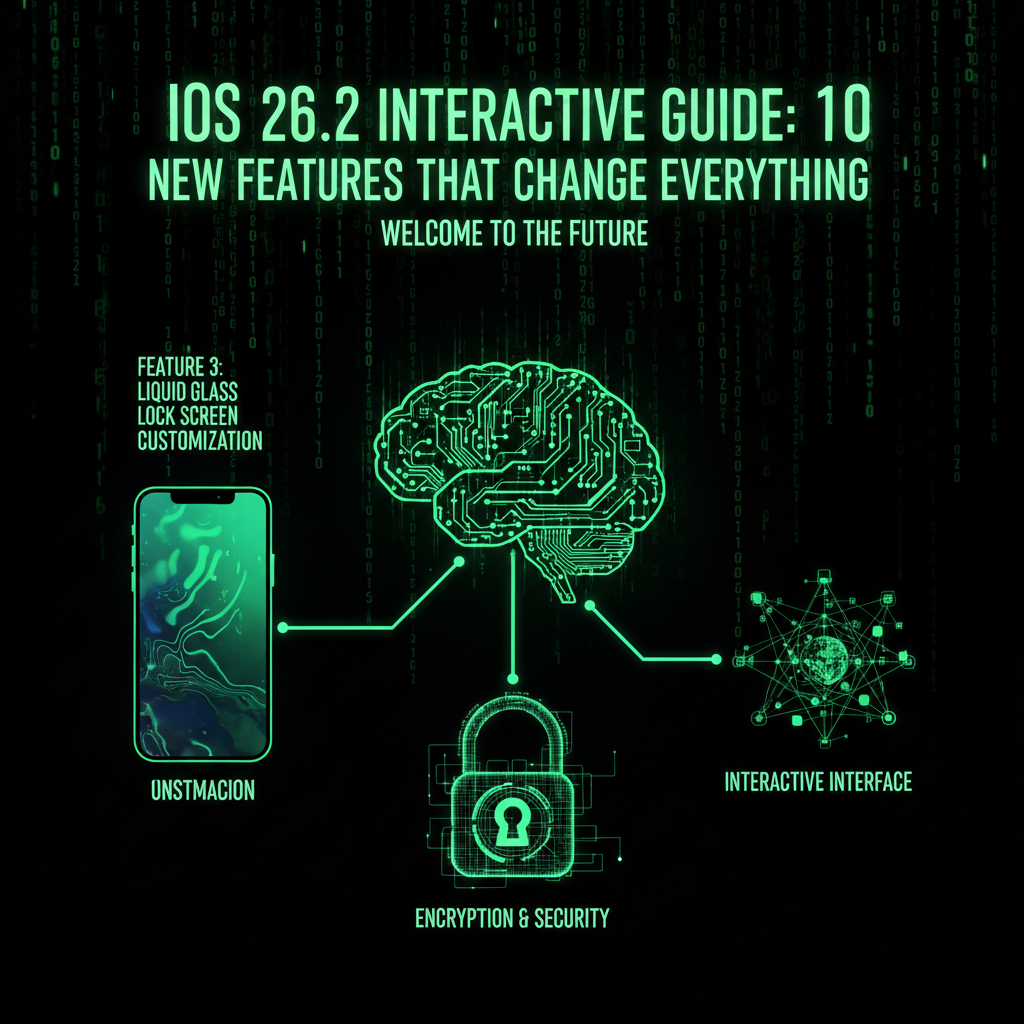
The Problem: The Lock Screen clock is functional, but it's not always readable against certain wallpapers. You want to customize it, but options are limited.
The Solution: iOS 26.2 introduces the "Liquid Glass" slider, allowing you to adjust the transparency of the Lock Screen clock for better visibility and personalization.
How It Works
The Liquid Glass slider gives you precise control over the Lock Screen clock's appearance:
- Adjust transparency: Make the clock more or less transparent
- Improve readability: Ensure the clock is visible against any wallpaper
- Create visual effects: Use transparency to create depth and visual interest
- Match your style: Customize the clock to match your personal aesthetic
Step-by-Step Setup
Customizing Your Lock Screen Clock
- Long-press on your Lock Screen
- Tap "Customize"
- Tap on the clock area
- Find the "Liquid Glass" slider
- Adjust the slider to your preferred transparency level
- Tap "Done" to save
💡 Design Tip: Lower transparency (more opaque) works best with busy wallpapers. Higher transparency (more see-through) creates elegant effects with minimalist wallpapers.
Design Inspiration: Best Practices
- Busy wallpapers: Use lower transparency (30-50%) to ensure the clock is readable
- Minimalist wallpapers: Use higher transparency (70-90%) for a subtle, elegant look
- Dark wallpapers: Lower transparency with light-colored clock text creates contrast
- Light wallpapers: Higher transparency with dark clock text maintains readability
Feature 4: Auto-Generated Podcast Chapters
The Problem: Long-form podcasts are great, but finding specific segments is frustrating. You have to scrub through the timeline, guessing where the content you want might be.
The Solution: iOS 26.2 automatically generates chapters for podcast episodes, making navigation effortless.
How It Works
Apple Podcasts now uses AI to automatically detect and create chapters for podcast episodes:
- Automatic detection: The app analyzes the audio to identify topic changes and segments
- Chapter titles: Each chapter gets a descriptive title based on the content
- Easy navigation: Tap any chapter to jump directly to that segment
- Works with existing podcasts: No need for podcast creators to manually add chapters
Benefits for Listeners
- Skip to what matters: Jump directly to segments that interest you
- Resume intelligently: If you stop listening, you can easily find where you left off
- Share specific segments: Share a chapter link instead of the entire episode
- Better discovery: See what topics are covered before committing to a full listen
How to Use Podcast Chapters
Navigating Podcast Chapters
- Open a podcast episode in the Podcasts app
- While playing, tap the chapter list icon (appears if chapters are available)
- Browse the list of chapters with timestamps
- Tap any chapter to jump to that segment
- Use the chapter navigation buttons to move forward/backward
💡 Note: Not all podcasts will have chapters immediately. The feature works best with longer-form content (30+ minutes) and may take time to process for older episodes.
Feature 5: Recalibrated Sleep Score
The Problem: The Sleep Score feature in the Health app was too lenient. You'd get a "Good" score even when you felt terrible, making the metric less useful for tracking actual sleep quality.
The Solution: iOS 26.2 recalibrates the Sleep Score system with stricter thresholds, providing a more accurate reflection of your actual sleep quality.
What Changed
The new Sleep Score system:
- Uses stricter thresholds: What was "Good" before might now be "Fair"
- Considers more factors: Takes into account sleep stages, heart rate variability, and movement
- Provides more accurate ratings: Better reflects how you actually feel after sleep
- Offers actionable insights: Helps identify patterns that affect sleep quality
Understanding Your New Sleep Score
Sleep Score Ratings (Recalibrated)
- Excellent (90-100): Optimal sleep with all factors in ideal ranges
- Good (70-89): Quality sleep with minor disruptions
- Fair (50-69): Adequate sleep but room for improvement
- Poor (Below 50): Significant sleep disruptions affecting quality
⚠️ Important: Don't be alarmed if your scores drop initially. This is expected with the recalibration. Focus on trends over time rather than individual scores.
How to Improve Your Sleep Score
- Maintain consistent sleep schedule: Go to bed and wake up at the same times
- Create a bedtime routine: Wind down 30-60 minutes before sleep
- Optimize your sleep environment: Keep the room cool, dark, and quiet
- Limit screen time before bed: Blue light from screens disrupts sleep
- Track patterns: Use the Health app to identify what affects your sleep
Feature 6: Freeform Table Support
The Problem: Freeform boards are great for brainstorming, but organizing information in a structured way was difficult. You had to manually align text boxes and shapes.
The Solution: iOS 26.2 adds customizable table support to Freeform, allowing you to organize content in a structured, professional format.
How It Works
Freeform now supports tables that you can:
- Customize rows and columns: Add or remove as needed
- Format cells: Change colors, fonts, and alignment
- Add content: Text, images, and links within cells
- Resize and move: Tables are fully integrated into Freeform boards
Use Cases for Freeform Tables
- Project planning: Create task lists with assignees and deadlines
- Budget tracking: Organize expenses and income in a clear format
- Team collaboration: Share structured information with team members
- Content calendars: Plan social media posts or blog content
- Comparison charts: Compare features, prices, or options side-by-side
Step-by-Step: Creating a Table in Freeform
Adding a Table to Your Freeform Board
- Open the Freeform app
- Create a new board or open an existing one
- Tap the + button
- Select "Table" from the options
- Choose the number of rows and columns
- Tap "Add"
- Customize the table by tapping on cells to edit
- Use the formatting options to style your table
Feature 7: Apple News Redesign
The Problem: Finding specific content in Apple News required multiple taps and scrolling. The interface wasn't optimized for quick access to your favorite topics.
The Solution: iOS 26.2 redesigns Apple News with quick access buttons at the top, making it easier to jump to Sports, Politics, Technology, and other sections.
What's New
The redesigned Apple News interface includes:
- Quick access buttons: Shortcut buttons at the top for major categories
- Faster navigation: Jump to your favorite sections with one tap
- Improved layout: Better use of screen space and visual hierarchy
- Customizable shortcuts: Pin your most-used sections for even faster access
Available Quick Access Categories
- Sports: Latest scores, highlights, and analysis
- Politics: Political news and commentary
- Technology: Tech industry news and reviews
- Business: Financial and business news
- Entertainment: Celebrity news and entertainment updates
- Health: Health and wellness articles
Feature 8: CarPlay Pinned Messages Control
The Problem: CarPlay's pinned messages feature was useful, but some users preferred the classic interface. There was no way to disable it.
The Solution: iOS 26.2 allows CarPlay users to disable pinned messages, reverting to the classic Messages interface if preferred.
How to Disable Pinned Messages in CarPlay
CarPlay Settings
- Connect your iPhone to CarPlay
- Open Settings on your iPhone
- Tap "CarPlay"
- Select your car
- Tap "Messages"
- Toggle off "Pinned Messages"
💡 Note: This setting only affects CarPlay. Your regular Messages app will continue to show pinned messages when not connected to CarPlay.
Feature 9: Flash for Alerts (Accessibility)
The Problem: For users with hearing impairments or in loud environments, audio notifications aren't effective. Visual cues are essential.
The Solution: iOS 26.2 adds a "Flash for Alerts" option in Accessibility settings, making the screen flash for incoming notifications.
How It Works
The Flash for Alerts feature:
- Flashes the screen: The screen briefly flashes when you receive a notification
- Works with all notifications: Calls, messages, app alerts, and more
- Customizable: You can choose which types of alerts trigger the flash
- Battery efficient: Uses minimal battery power
Step-by-Step Setup
Enabling Flash for Alerts
- Open Settings
- Tap "Accessibility"
- Tap "Audio/Visual"
- Toggle on "Flash for Alerts"
- Customize which alerts trigger the flash (optional)
Who Benefits from This Feature?
- Hearing-impaired users: Visual notification cues are essential
- Loud environments: Construction sites, factories, or concerts
- Silent mode users: When you want visual alerts without sound
- Accessibility compliance: Helps meet accessibility requirements
Feature 10: Enhanced Safety Alerts
The Problem: Emergency alerts provide basic information, but during a crisis, you need more context—maps, evacuation routes, and additional resources.
The Solution: iOS 26.2 introduces Enhanced Safety Alerts (U.S. only) with rich information including maps of affected areas and links to safety guidance.
What's Enhanced
Enhanced Safety Alerts now include:
- Interactive maps: See the affected area on a map
- Safety guidance links: Direct links to official safety resources
- Evacuation information: Routes and shelter locations when available
- Real-time updates: Alerts update as the situation evolves
Types of Enhanced Alerts
- Weather emergencies: Tornadoes, hurricanes, severe storms
- Public safety: Active threats, evacuations, shelter-in-place orders
- Amber Alerts: Missing children alerts with location information
- Presidential alerts: National emergencies and critical information
⚠️ Important: Enhanced Safety Alerts are currently only available in the United States. International users will continue to receive standard emergency alerts based on their region's capabilities.
Security Updates: What You Need to Know
iOS 26.2 includes critical security fixes that every user should be aware of:
App Store Payment Token Vulnerability
The Issue: A vulnerability allowed apps to access sensitive payment tokens, potentially exposing payment information.
The Fix: iOS 26.2 patches this vulnerability, preventing apps from accessing payment tokens they shouldn't have access to.
Why This Matters
Payment token vulnerabilities are serious because:
- Financial risk: Exposed tokens could be used for unauthorized transactions
- Privacy breach: Your payment information could be accessed by malicious apps
- Compliance issues: Violates PCI-DSS standards for payment security
🔒 Security Recommendation: Update to iOS 26.2 immediately if you use your iPhone for payments, shopping, or financial transactions. This is not an optional update—it's a critical security patch.
Additional Security Improvements
- Enhanced app sandboxing: Better isolation between apps
- Improved encryption: Stronger encryption for sensitive data
- Privacy enhancements: Better control over app permissions
Device Compatibility and Installation
Compatible Devices
iOS 26.2 is available for the following devices:
- iPhone 11 and newer (all models)
- iPhone SE (2020)
- iPhone SE (2022)
⚠️ Note: iPhone X and older models are not supported. If you're using an older device, you'll need to upgrade to receive iOS 26.2 updates.
Installation Requirements
- Storage space: At least 2 GB of free storage (update size varies by device)
- Battery level: At least 50% battery or connected to power
- Internet connection: Wi-Fi recommended (cellular data works but is slower)
- Time: 15-30 minutes for the update to complete
How to Install iOS 26.2
Step-by-Step Installation
- Open Settings
- Tap "General"
- Tap "Software Update"
- If iOS 26.2 is available, tap "Download and Install"
- Enter your passcode if prompted
- Agree to the terms and conditions
- Wait for the download to complete
- Tap "Install Now" (or schedule for later)
- Your iPhone will restart during installation
- Wait for the update to complete (15-30 minutes)
💡 Pro Tip: Back up your iPhone before updating. While updates are generally safe, having a backup ensures you can restore if anything goes wrong.
Best Practices: Getting the Most from iOS 26.2
1. Set Up Urgent Reminders Strategically
Don't overuse urgent reminders. Reserve them for truly critical tasks. If everything is urgent, nothing is urgent, and you'll start ignoring them.
2. Use AirDrop PIN Codes Securely
Share PIN codes through secure channels (encrypted messaging, in person). Don't post them publicly or share them in unsecured emails.
3. Customize Your Lock Screen Thoughtfully
Test different transparency levels with your wallpapers. The goal is readability first, aesthetics second.
4. Explore Podcast Chapters
Take advantage of auto-generated chapters to discover new podcasts. You can jump to interesting segments without committing to full episodes.
5. Monitor Your Sleep Score Trends
Don't focus on individual scores. Look at trends over time to identify patterns and make lifestyle adjustments.
6. Organize with Freeform Tables
Use tables in Freeform for structured planning. They're perfect for project management, budgeting, and content calendars.
7. Enable Enhanced Safety Alerts
If you're in the U.S., make sure Enhanced Safety Alerts are enabled. They provide critical information during emergencies.
iOS 26.2 vs Previous Versions: What Changed
Comparison Table: iOS 26.1 vs iOS 26.2
| Feature | iOS 26.1 | iOS 26.2 |
|---|---|---|
| Reminders | Standard notifications | Urgent alarms with snooze |
| AirDrop | Contacts only or "Everyone" | PIN code sharing (30-day access) |
| Lock Screen | Fixed clock transparency | Liquid Glass slider customization |
| Podcasts | Manual chapter navigation | Auto-generated chapters |
| Sleep Score | Lenient thresholds | Recalibrated, stricter thresholds |
| Freeform | Text boxes and shapes only | Customizable tables |
| Apple News | Standard navigation | Quick access buttons |
| CarPlay | Pinned messages (no disable option) | Option to disable pinned messages |
| Accessibility | Limited visual alerts | Flash for Alerts feature |
| Safety Alerts | Basic text alerts | Enhanced with maps and links (U.S.) |
| Security | Payment token vulnerability | Vulnerability patched |
Frequently Asked Questions
General Questions
Q: Is iOS 26.2 a free update?
A: Yes, iOS 26.2 is a free update for all compatible devices. There are no subscription fees or in-app purchases required.
Q: How long does the update take to install?
A: The installation typically takes 15-30 minutes, depending on your device model, internet connection speed, and current iOS version. Make sure you have at least 50% battery or are connected to power.
Q: Will updating to iOS 26.2 delete my data?
A: No, updating to iOS 26.2 will not delete your data. However, it's always recommended to back up your iPhone before updating, just in case something goes wrong during the installation process.
Q: Can I downgrade to iOS 26.1 if I don't like iOS 26.2?
A: Apple typically stops signing previous iOS versions shortly after a new release. While downgrading might be possible immediately after release, it becomes increasingly difficult and is generally not recommended. It's better to adapt to the new features.
Feature-Specific Questions
Q: Do urgent reminders work with Do Not Disturb enabled?
A: Yes, urgent reminders will bypass Do Not Disturb settings. This is intentional—if something is truly urgent, you need to be notified regardless of your focus mode settings.
Q: How secure are AirDrop PIN codes?
A: AirDrop PIN codes are designed with security in mind. They expire after 30 days or after the first successful transfer (whichever comes first). However, you should still share PIN codes through secure channels and only with people you trust.
Q: Will my Sleep Score drop after updating to iOS 26.2?
A: Possibly. The Sleep Score system has been recalibrated with stricter thresholds, so scores that were "Good" before might now be "Fair." This is expected and reflects a more accurate assessment of sleep quality. Focus on trends over time rather than individual scores.
Q: Do all podcasts have auto-generated chapters?
A: Not immediately. The feature works best with longer-form content (30+ minutes) and may take time to process for older episodes. New episodes are more likely to have chapters available right away.
Q: Are Enhanced Safety Alerts available outside the U.S.?
A: Currently, Enhanced Safety Alerts are only available in the United States. International users will continue to receive standard emergency alerts based on their region's capabilities. Apple may expand this feature to other regions in future updates.
Security Questions
Q: Is the payment token vulnerability serious?
A: Yes, it's a critical security issue. The vulnerability allowed apps to access sensitive payment tokens, which could potentially be used for unauthorized transactions. If you use your iPhone for payments or shopping, you should update to iOS 26.2 immediately.
Q: Should I update immediately or wait?
A: Given the security fixes in iOS 26.2, especially the payment token vulnerability patch, we recommend updating as soon as possible. The new features are stable and well-tested, and the security improvements are critical.
Compatibility Questions
Q: Why isn't my iPhone X supported?
A: Apple typically supports devices for 5-7 years after their release. The iPhone X was released in 2017, making it 8 years old. Older devices may not have the hardware capabilities required for newer iOS features and optimizations.
Q: Will iOS 26.2 slow down my older iPhone 11?
A: Generally, no. Apple optimizes iOS updates for performance across all supported devices. However, if you're experiencing performance issues, it may be due to other factors like storage space, battery health, or app compatibility. Consider backing up and doing a fresh install if performance is a concern.
Conclusion: Is iOS 26.2 Worth the Update?
Absolutely, yes.
iOS 26.2 isn't just a feature update—it's a security-critical release that patches a serious payment token vulnerability. Beyond security, the new features address real-world problems with elegant solutions:
- Urgent reminders ensure you never miss critical tasks
- AirDrop PIN codes make sharing secure and convenient
- Liquid Glass customization improves Lock Screen usability
- Podcast chapters make long-form content more accessible
- Enhanced safety alerts provide critical information during emergencies
For business owners, iOS 26.2 offers productivity improvements that can streamline workflows. The urgent reminders feature is particularly valuable for managing deadlines and appointments, while AirDrop PIN codes make client file sharing more secure and professional.
Our recommendation: Update to iOS 26.2 immediately. The security fixes alone make this a mandatory update, and the new features are worth exploring. Take the time to set up urgent reminders for critical tasks, experiment with AirDrop PIN codes for secure file sharing, and customize your Lock Screen for better usability.
If you're a business owner looking to leverage these new iOS capabilities in your mobile web presence, our website development services can help create mobile-optimized experiences that work seamlessly with the latest iOS features.
💡 Final Tip: After updating, take 10 minutes to explore the new features. Set up one urgent reminder for an important task this week. Try sharing a file using an AirDrop PIN code. Customize your Lock Screen clock. These small actions will help you get the most from iOS 26.2.
Last updated: December 12, 2025
iOS version covered: iOS 26.2
Compatible devices: iPhone 11 and newer, iPhone SE 2020/2022